


Group chats are a great way to stay connected, plan events, and share moments with multiple friends at once. If you’re new to Snapchat or just haven’t tried this feature yet, this guide will walk you through how to create and manage a group chat step by step. At the end you’ll also find FAQ answers. Let’s get started.
What You Need Before Starting
- Updated Snapchat app — Make sure you’re running the latest version so all features work as expected.
- A logged-in Snapchat account — You need to be signed in to create or participate in groups.
- Your friends added — You can only add people who are already your Snapchat friends.
- Permissions enabled — Snapchat should have permission to access your contacts (if needed) so that friends appear properly.
How to Create a Group Chat on Snapchat (Step-by-Step)
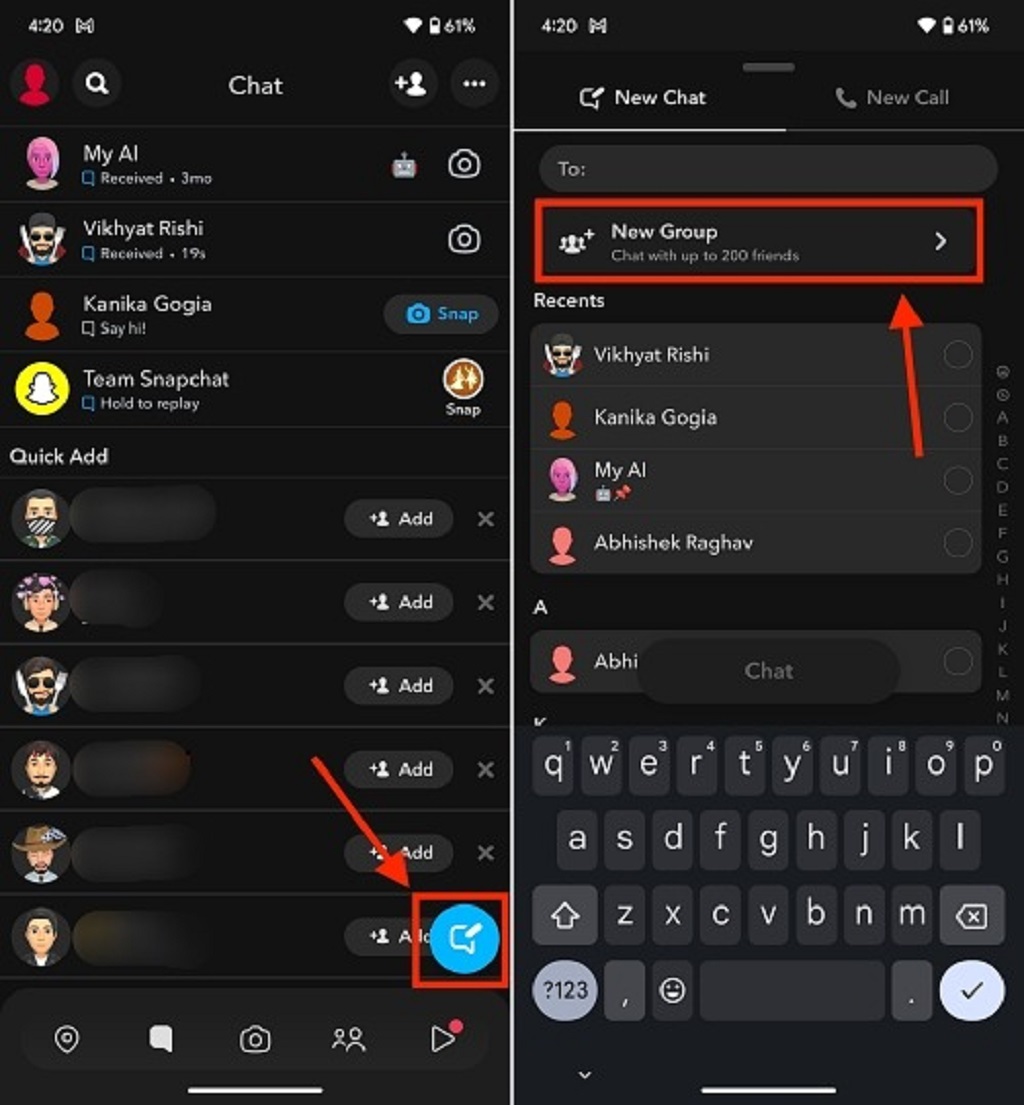
Step 1: Open the Snapchat App
Launch Snapchat and swipe right (or tap the Chat icon) to go to the Chat screen.
Step 2: Start a New Chat
Tap the “New Chat” icon (speech bubble with a pencil) to begin.
Step 3: Select Friends for the Group
Choose the friends you want to include in your group chat. Snapchat supports a large group size (see “Limits & rules” section). According to Snapchat support, group chats allow up to 200 people. Note: earlier guides sometimes mention lower limits (100) — Snapchat may change this over time.
Step 4: Name Your Group
After selecting friends, you’ll be prompted to give your group chat a name. Pick something descriptive so members know what the group is for (e.g. “Project Team,” “Weekend Plans,” “Family”).
Step 5: Send the First Message
Tap “Chat with Group” (or a similar button) to finalize creation and send a message. Once created, the group appears in your Chat list.
How to Add More People Later
If you forgot someone, or want to expand the group, here’s how:
- Open the group chat
- Tap the group name at the top (or the menu / info icon)
- Choose “Add Members” or “Add Friends to Group” and select additional friends
How to Manage Group Settings
Once your group is active, you can control several settings:
- Change group name: Tap the group name in chat → Edit name.
- Mute notifications: Tap the three dots or settings menu → Manage notifications. You may choose “Mute,” “Mentions Only,” etc.
- Leave the group: From group settings, choose “Leave Group” if you no longer want to participate.
- View members: Scroll in the group info to see the current participants.
Fun Features You Can Use in a Snapchat Group Chat
- Send Snaps, images, videos, and text messages to the group
- Use Bitmojis, stickers, GIFs, and reactions
- Voice notes or voice messages
- Group video or voice calls (Snapchat allows group calls) — up to certain limits
- Mentions (type “@” + username) to call someone’s attention in a group chat
Troubleshooting Common Issues
- Can’t add a friend: The person might not be your Snapchat friend, or there might be privacy settings blocking group adds.
- Messages not sending: Check your internet connection or that Snapchat has permission to use data.
- Notifications not working: Make sure group notifications are on in both Snapchat settings and your phone’s settings.
- Group disappeared or messages missing: Snapchat’s chats and Snaps in groups expire after a time (typically 24 hours) unless saved.
Privacy & Safety Tips
Group chats are more public than one-on-one conversations, so keep these safety tips in mind:
- Only add people you trust — members can see what you post in that chat
- You can leave any group at any time
- Be careful with sensitive content; group chats can be screenshot
- If someone is behaving inappropriately, remove (if possible) or leave the group
- Review your Snapchat privacy settings (who can send you messages, see your story, etc.)
Limits & Rules You Should Know
| Feature | Current Limit / Note |
|---|---|
| Max people in group chat | Up to 200 members (per Snapchat support) |
| Message expiration | Snaps, chats, media typically expire after 24 hours unless saved by a user |
| Video call group size | Supports group video / voice calls, but fewer participants than chat (varies) |
Related Topic: Measure Angles Without a Protractor?
Frequently Asked Questions (FAQs)
How many people can you have in a Snapchat group chat?
You can have up to 200 people in a Snapchat group chat according to Snapchat’s official support. Some older sources or articles still mention lower limits (e.g. 100), so your experience may depend on app version or region.
Can I remove someone from a Snapchat group?
Snapchat allows adding members, but **removing** someone from a group is limited — users can leave themselves. There isn’t (as of current support documentation) a consistent “remove by others” function.
Do Snaps sent in groups count toward Snapstreaks?
No. Snaps sent in group chats do **not** count toward your snap streaks with individual friends.
How long do group messages last?
Group messages and Snaps typically expire after 24 hours unless you or others save them.
Can someone see if I leave a group chat?
Yes — when you leave, Snapchat shows a simple message in the chat that you have left. Other members will see that you exited.
Can someone add me to a group without my approval?
Yes — group members can add friends (within limits), so you might be added without explicit invitation. You can always leave if you don’t want to participate.
Conclusion
Creating a group chat on Snapchat is simple and powerful. Whether you’re coordinating a trip, sharing memes, or staying in touch with several friends, group chats make communication easier. Just pick your friends, name the group, and start chatting.
Be mindful of privacy, manage your group settings, and use the features Snapchat offers to customize your experience. Enjoy connecting with your friends!